Nameplate

Paymails

Nameplate

Create a paymail name for yourself.
You must admin the site.
You can't make name@gov.uk unless you admin the site.
Your paymail sits beside your house paymail.
Your Link holds the coins.

What it is

Same wallet

Nameplate links to Link. It does not keep a seed.

Your site

The name is something like joel@your-site. The house paymail stays you@nexusnode.link.

One name, one wallet

Each name pays the Link wallet that was connected when you published it. Other names stay.

WordPress

The plugin is inside the app. You upload it once, from the page Nameplate opens.

Want more site paymails?

Create a new paymail wallet in your Link and then use this app again and attach your new site paymail to your new Link paymail.

Boundless

There are no limits and no costs, this is a free app.

Application password

This is not your site login. WordPress makes a separate password, and it shows it only once.
  1. 1Log in to your site's dashboard.
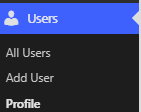
  2. 2Open Users, then Profile.Users menu with Profile
  3. 3The username at the top of that page is the one Nameplate asks for. The site will not let you change it.
  4. 4Scroll to Application Passwords. Type a name such as Nameplate. Press Add Application Password.Application Passwords on the profile page
  5. 5Copy the password WordPress prints. Paste it into Nameplate. The eye beside the box shows what you pasted.

Publish a name

  1. 1Open Link on the wallet that should be paid. In Nameplate, press Connect and pick that wallet. The house line must be that paymail.
  2. 2Open the cog. Set the site, the WordPress username, and the application password. Press Close.
  3. 3Press Install plugin. Upload the zip it selects, activate Nameplate, then press Install plugin again until it says the plugin is on the site.
  4. 4Type the name. Press Publish. Link shows it beside Paymail. The copy icon copies that name.
  5. 5Another wallet: connect that wallet, type a different name, and press Publish. The first name stays.

Windows desktop. Link is the wallet.
